 无限画布
你好,今天想要创作什么?
告诉我你的心中所想
大额充值或对公付款,请联系管理员。
已与 VideoToken 主站全面打通:无需手动填写 API Key,直接复用主站账号、余额、分组模型与云端存储。
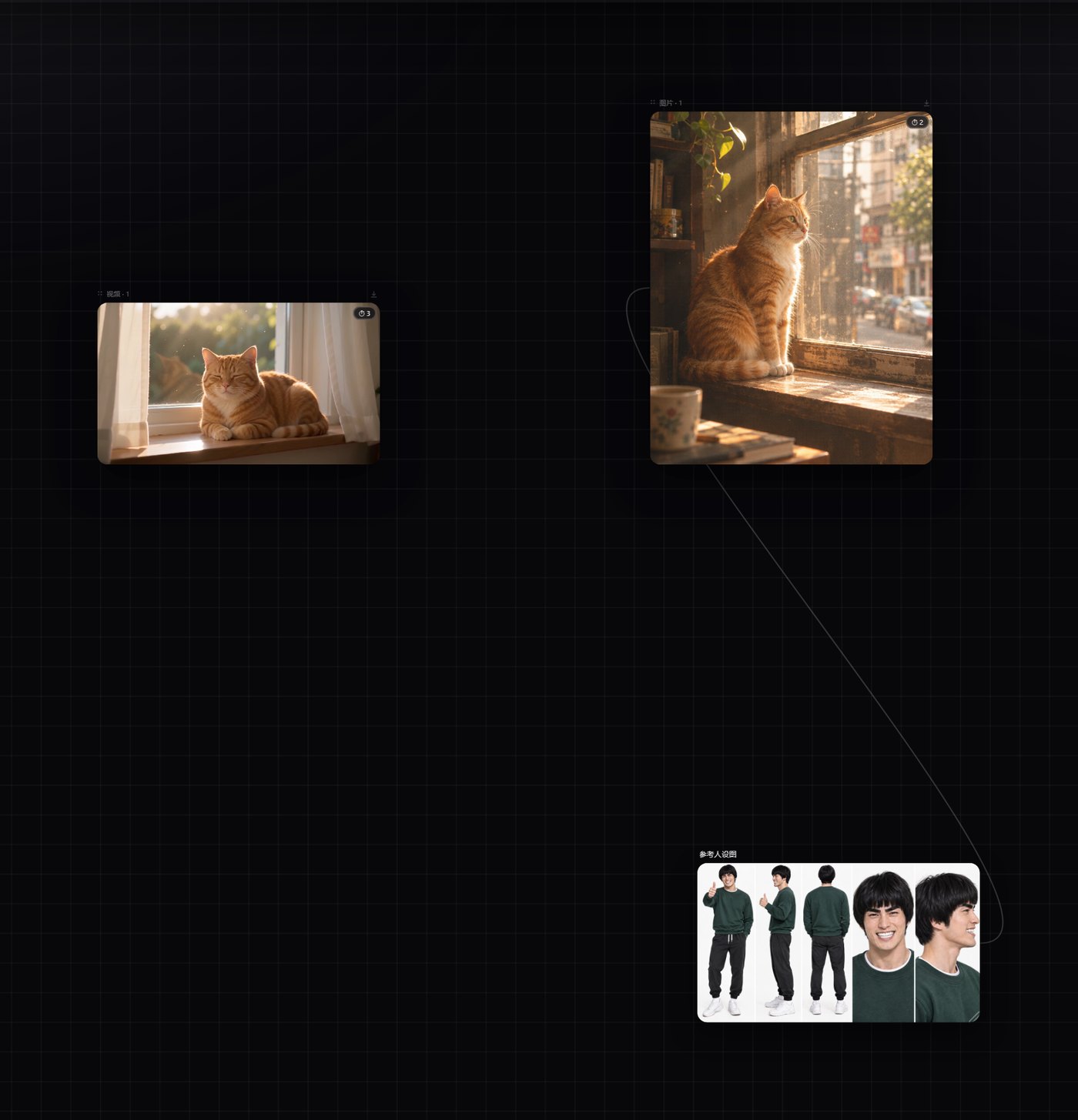
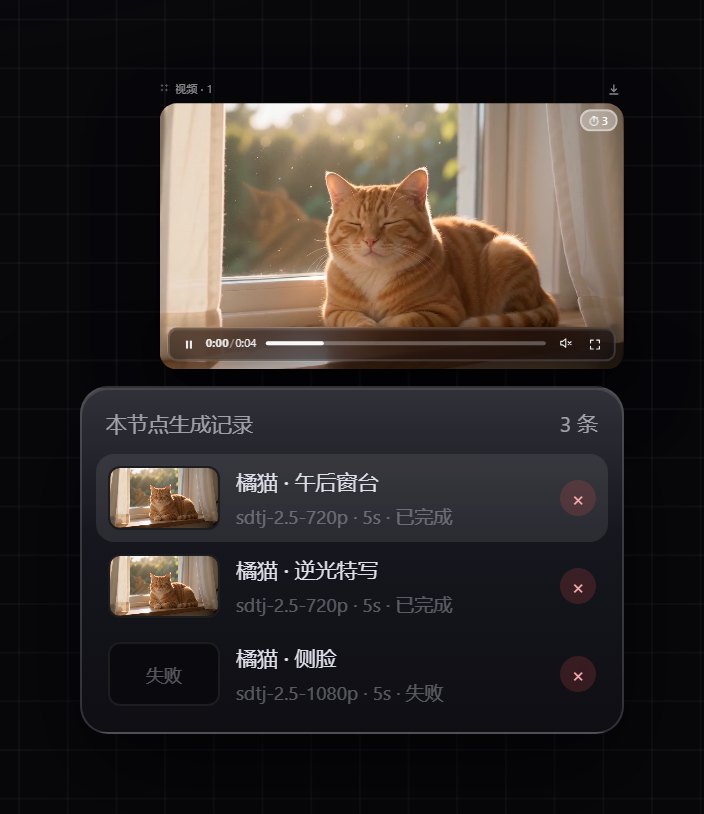
MaiMai Studio 是内嵌在 VideoToken 中的画布式 AI 视频 / 图片在线工作台。提示词是画布上的节点,素材可以自由拖入、分组、连线复用,多个镜头和版本并排展示,非常适合分镜设计、多镜头短片和多版本对比。
| 能力 | 说明 |
|---|---|
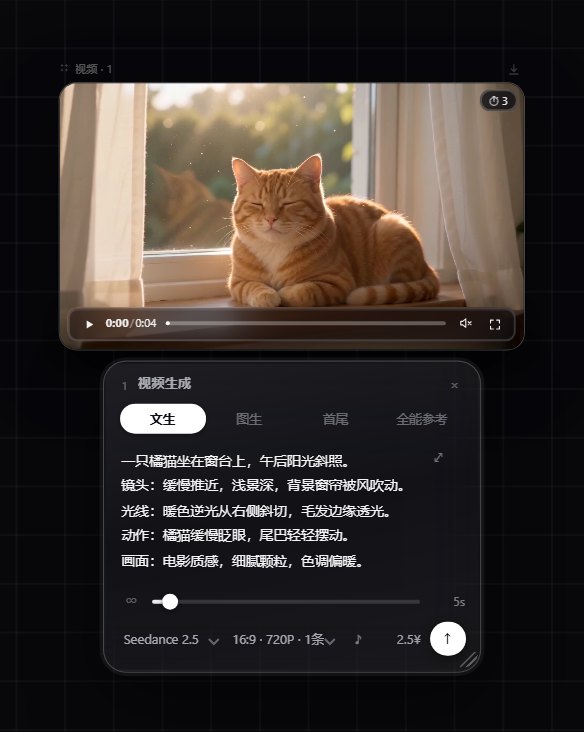
| 文生视频 | 输入提示词直接出片,支持各模型完整分辨率与时长档位 |
| 图生视频 / 首尾帧 | 指定首帧或首尾帧图片,精准控制起止画面 |
| 全能参考 | 多张参考图 + 音频 + 参考视频联动,稳定锁定角色、画风与运镜 |
| 多镜头画布 | 多个镜头同时展开、素材连线复用、一键打组整理 |
| 批量出片 | 一次提交 1–5 条视频,提交前即可看到实时预估费用 |
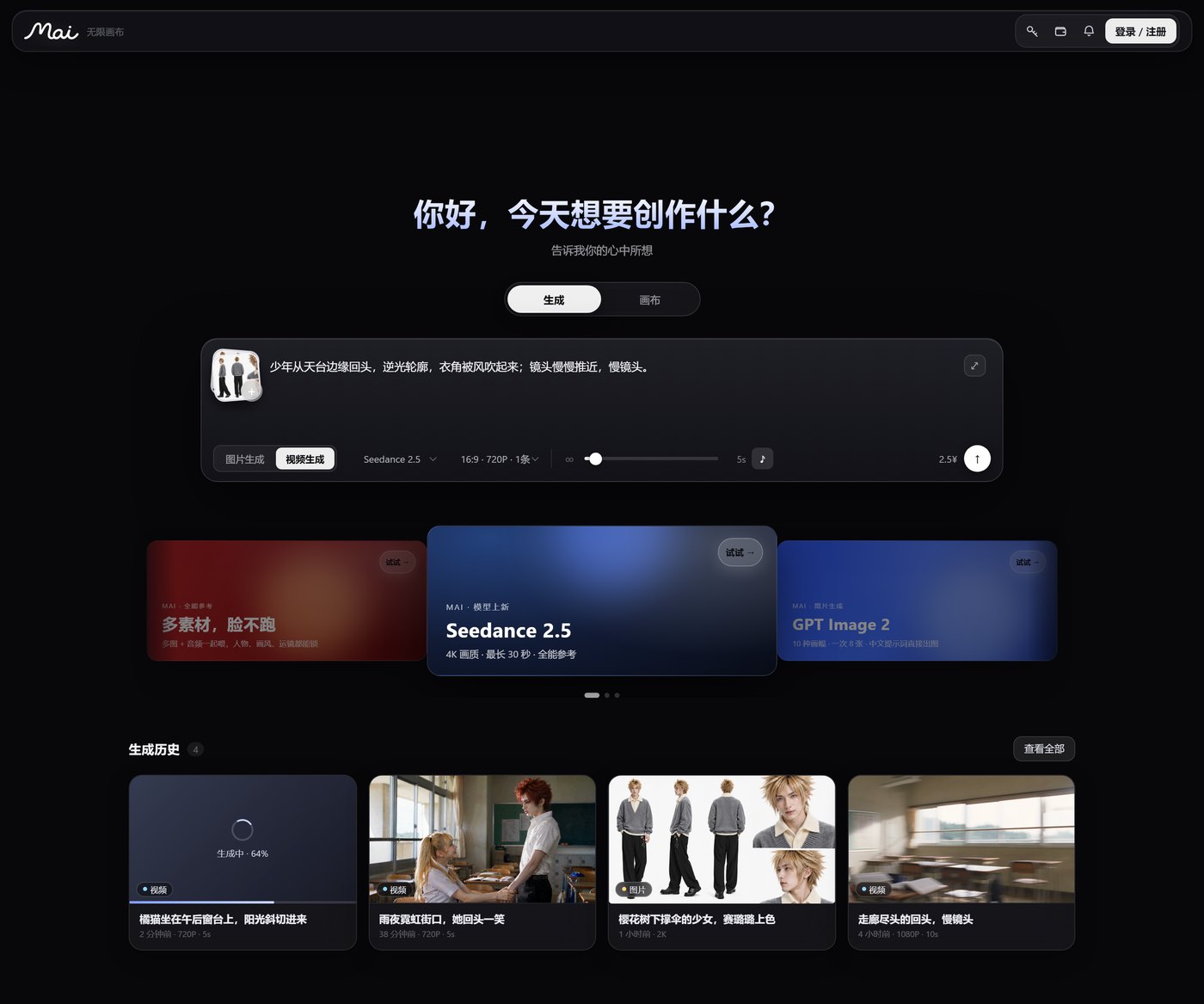
EN / 中文 切换语言;英文界面默认以美元($)展示余额与预估费用,切换中文后自动按平台汇率换算人民币(¥)。生成模式适合快速试一条提示词:写完提示词、挂上参考素材、选好模型即可直接出片,结果自动归档在下方的「生成历史」中。
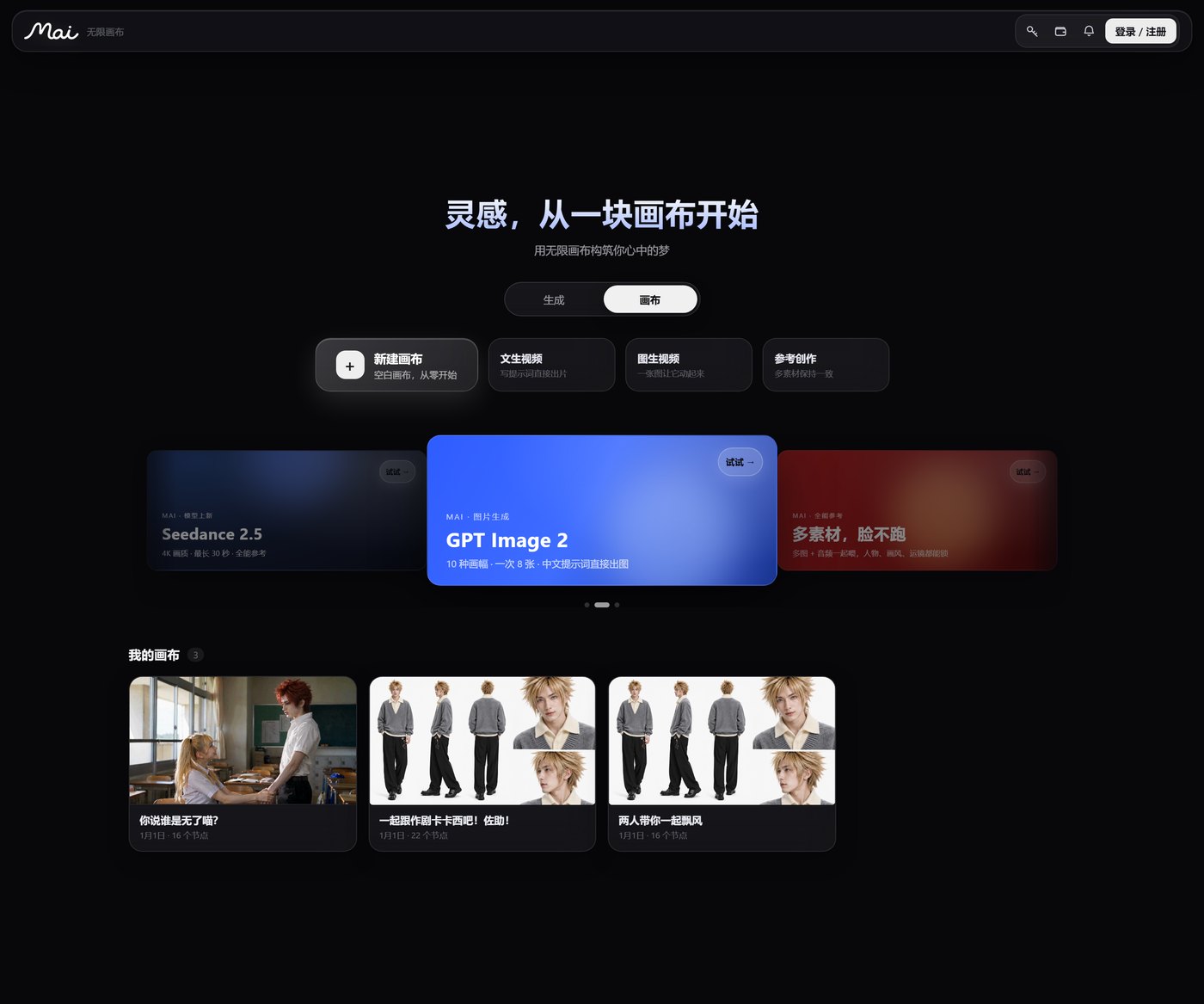
画布模式适合做多镜头工程:点击「新建画布」或快捷模板进入无限画布,所有工程实时同步到你的 VideoToken 云端账号。
F 一键适应屏幕。Ctrl / Cmd 点选。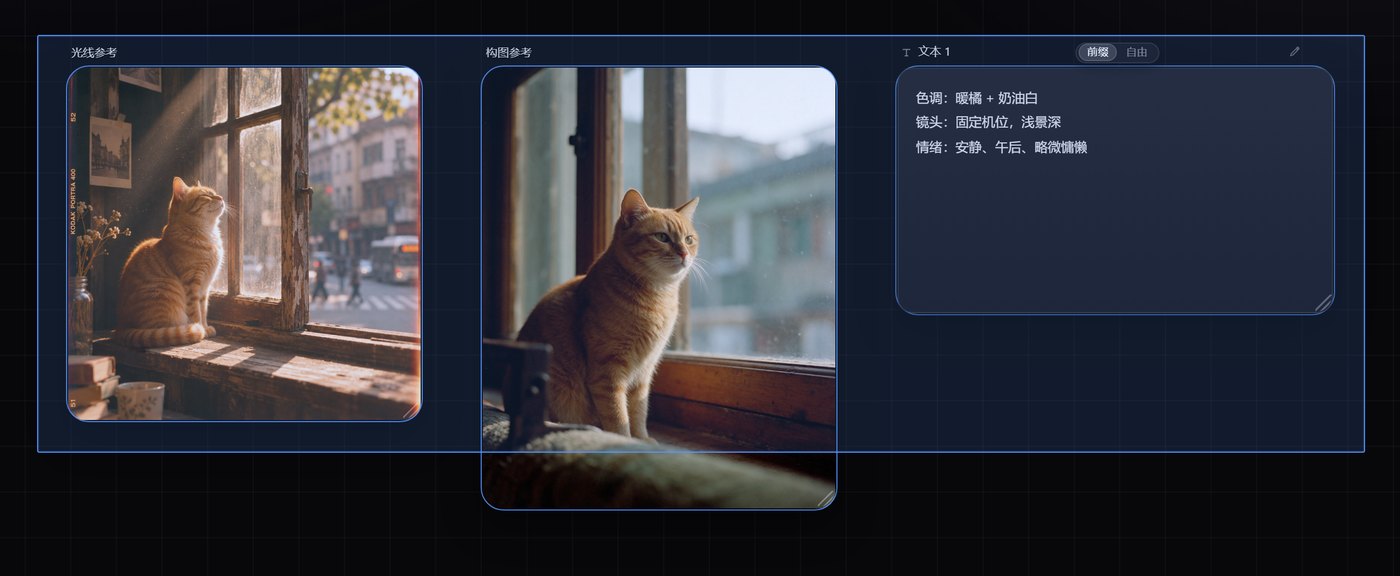
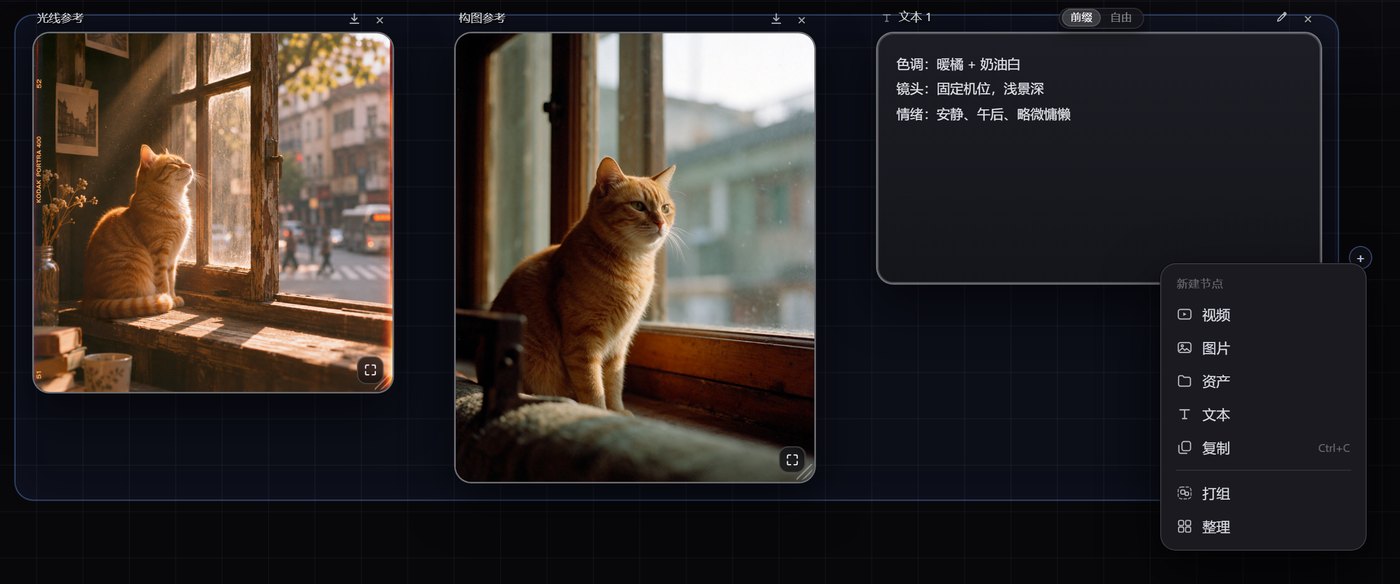
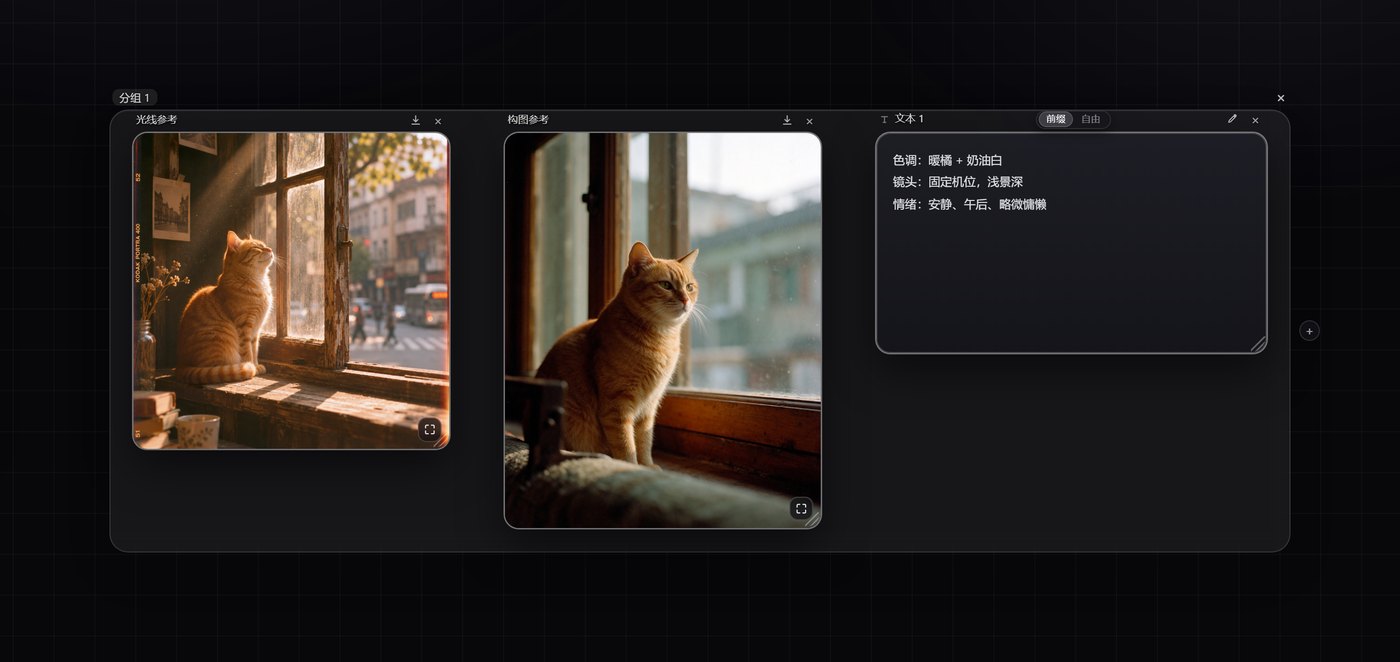
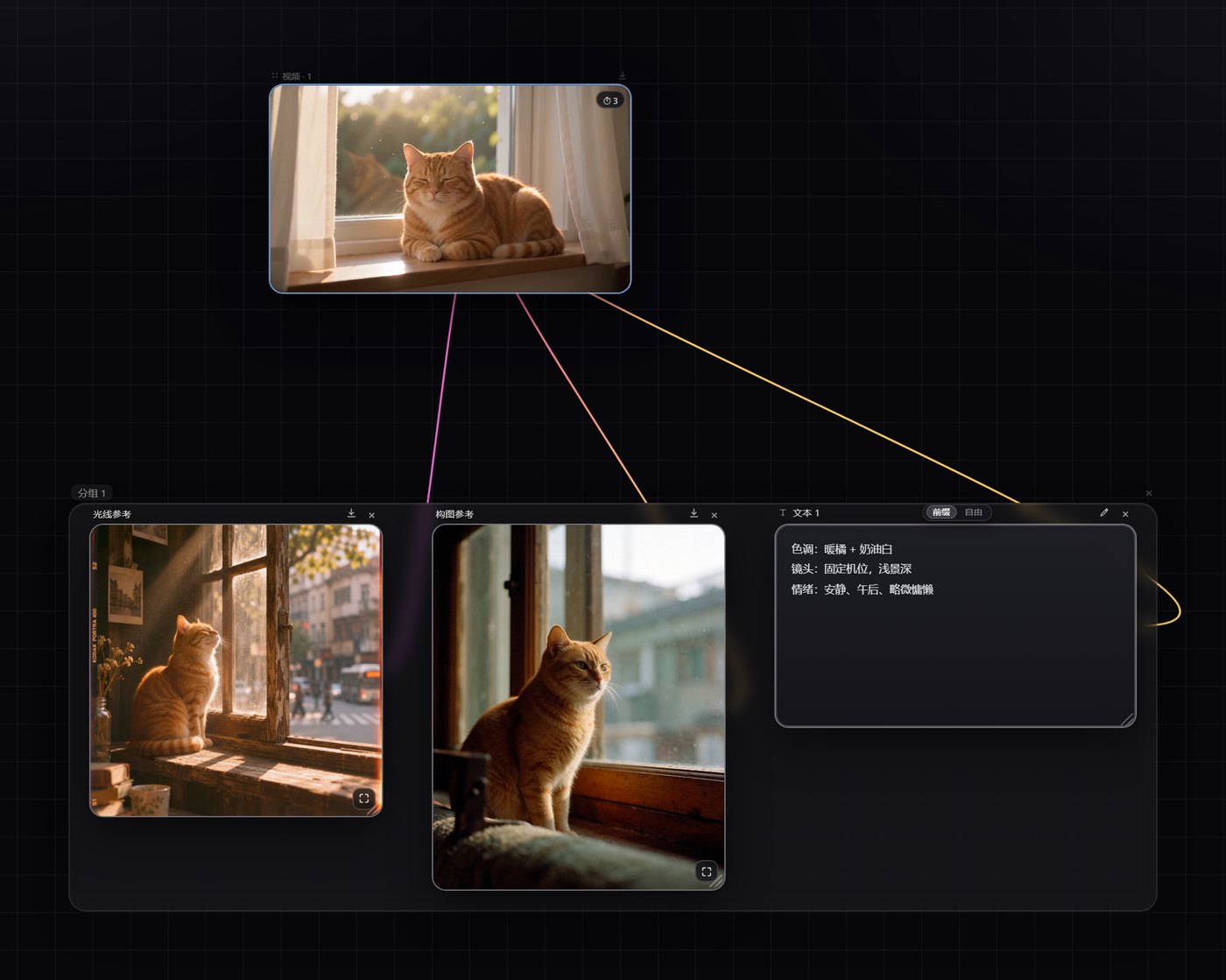
Alt 拖动节点即可拖出一份副本,方便多版本对比。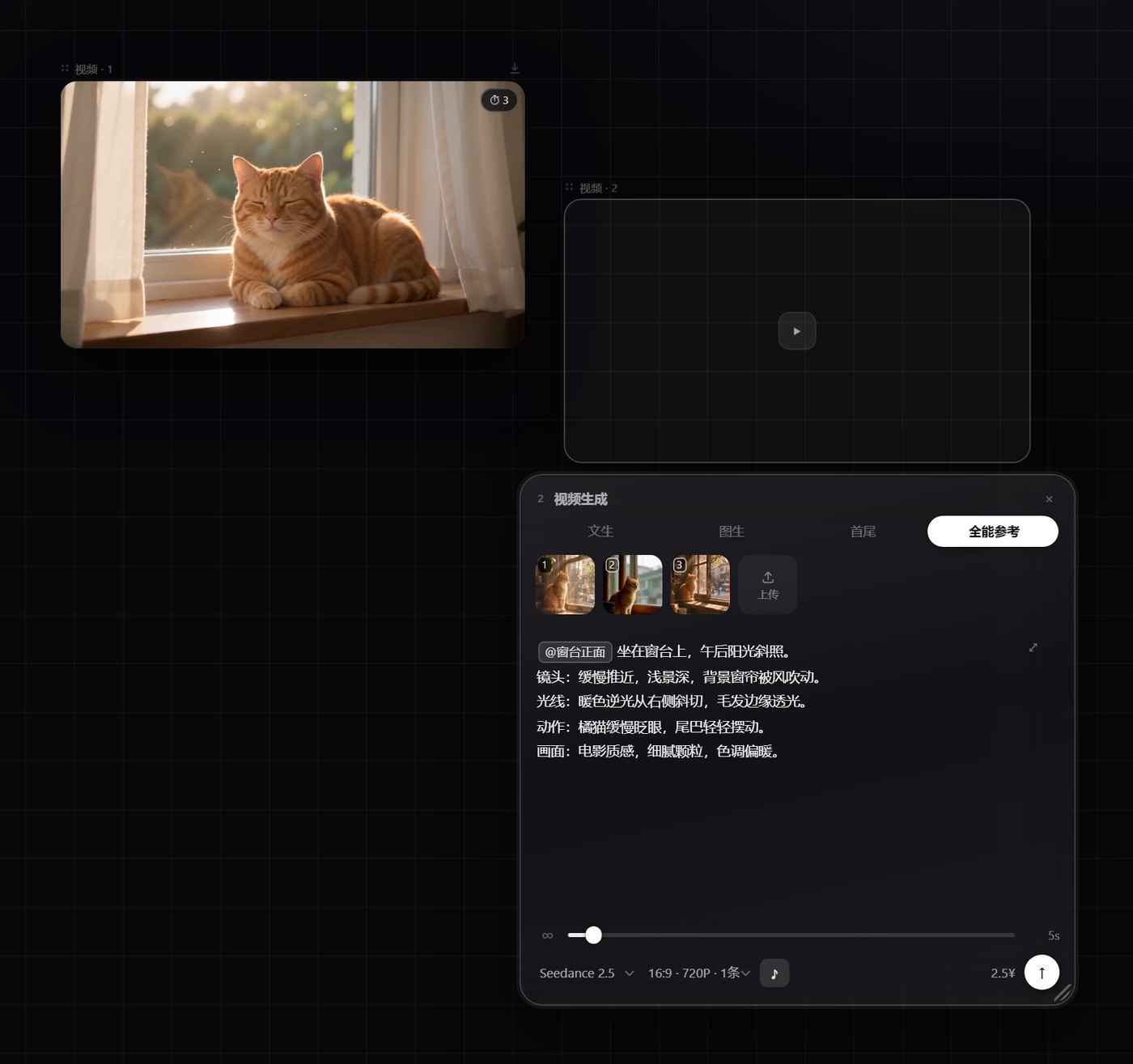
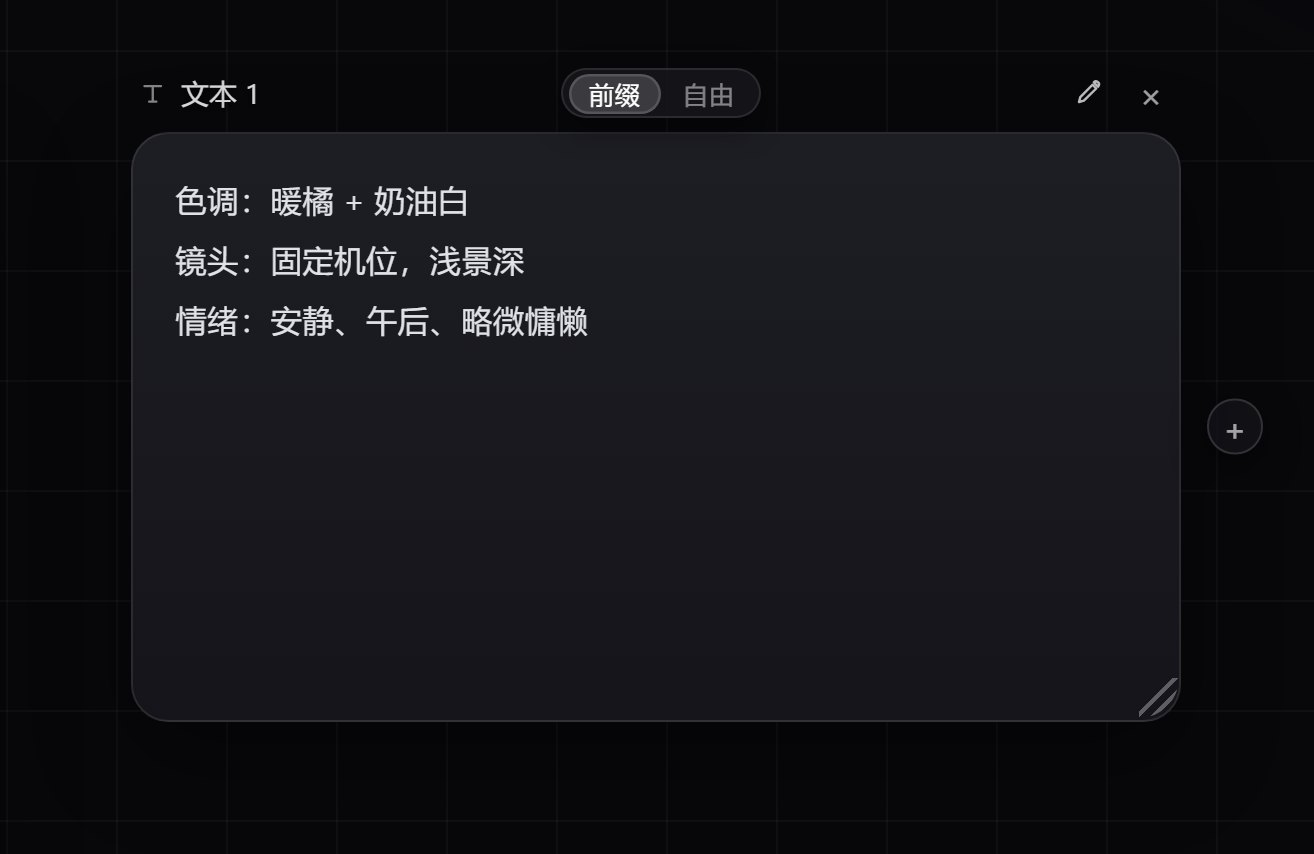
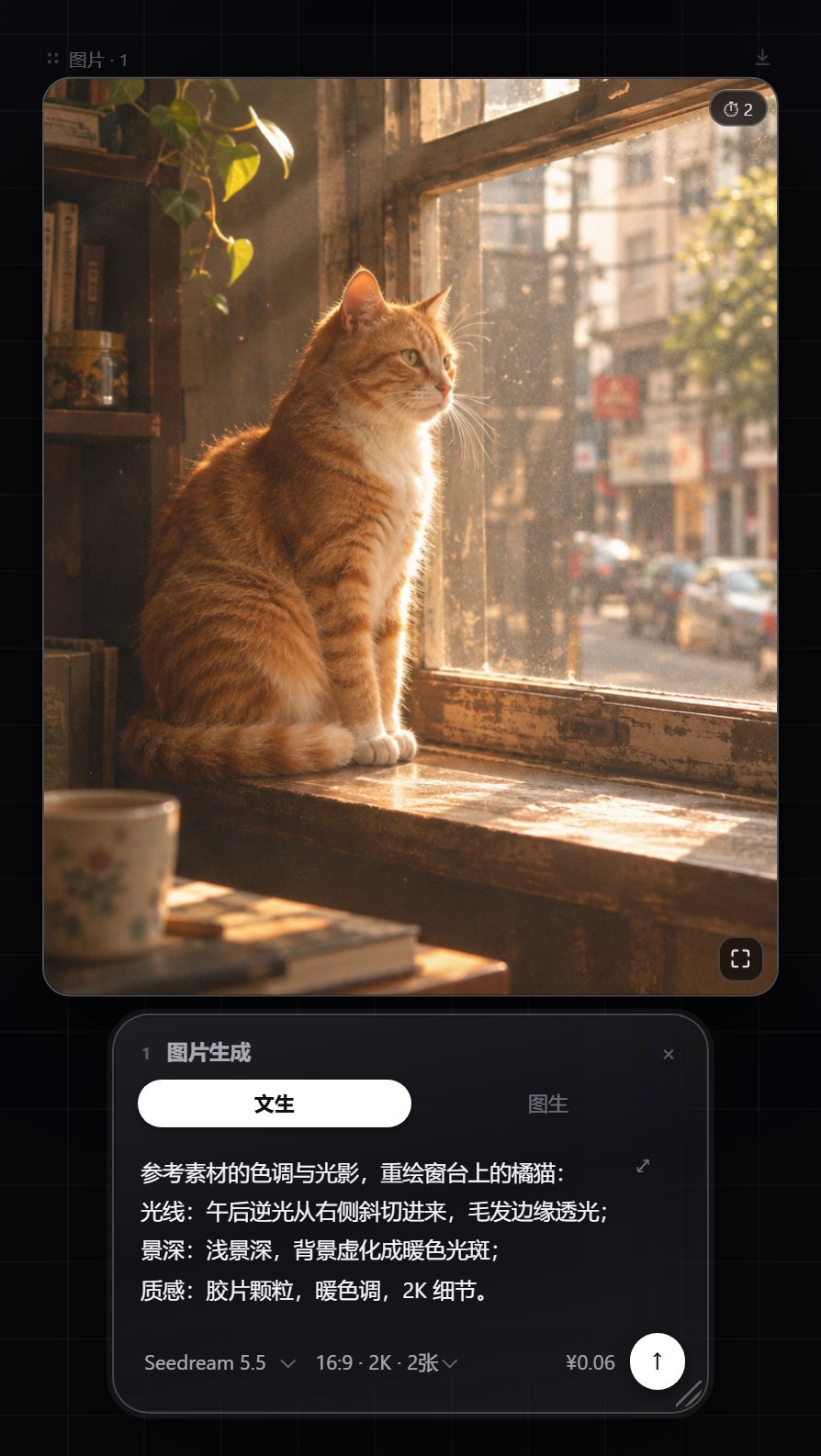
左侧工具栏或画布空白处右键可新建四类节点:视频生成节点、图片生成节点(平台上架图片模型时自动显示)、素材节点与文本节点。
点击模型按钮打开二级选择器:先选分组,再选该分组下的模型。列表完全实时同步 VideoToken 已上架且对当前账号可见的模型,未上架的模型不会出现。
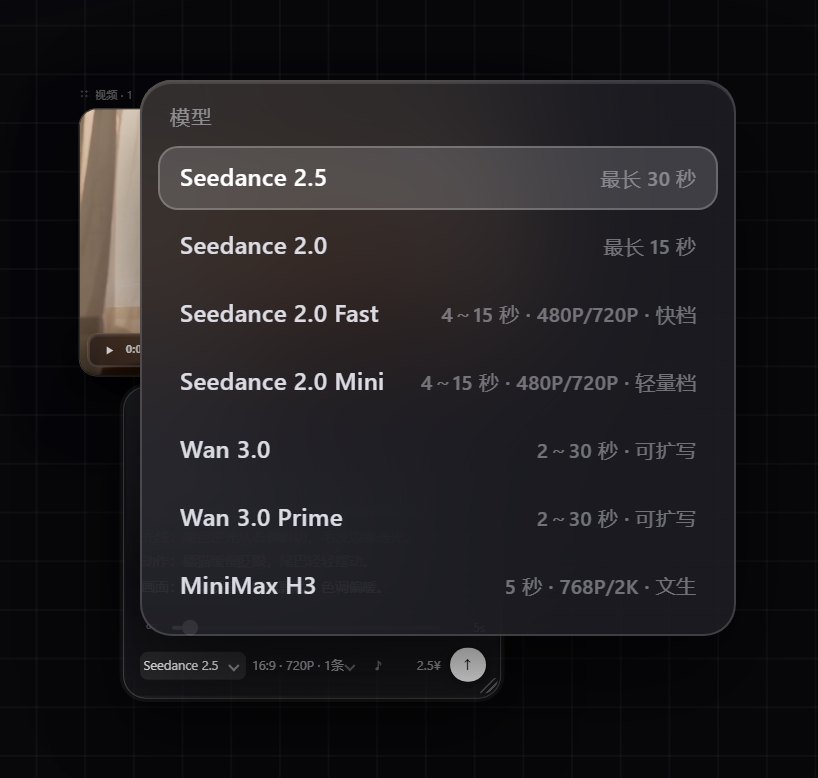
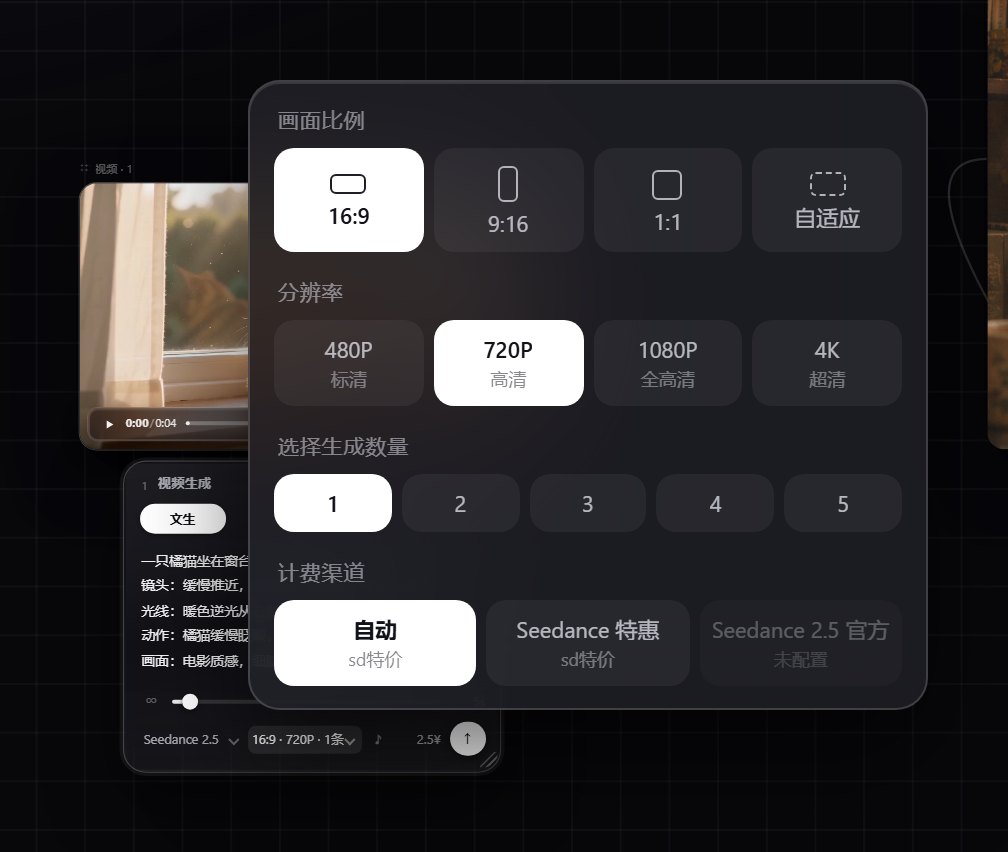
参数面板自动按所选模型的真实能力展示分辨率、画幅比例、时长范围与是否支持自动时长(∞)。
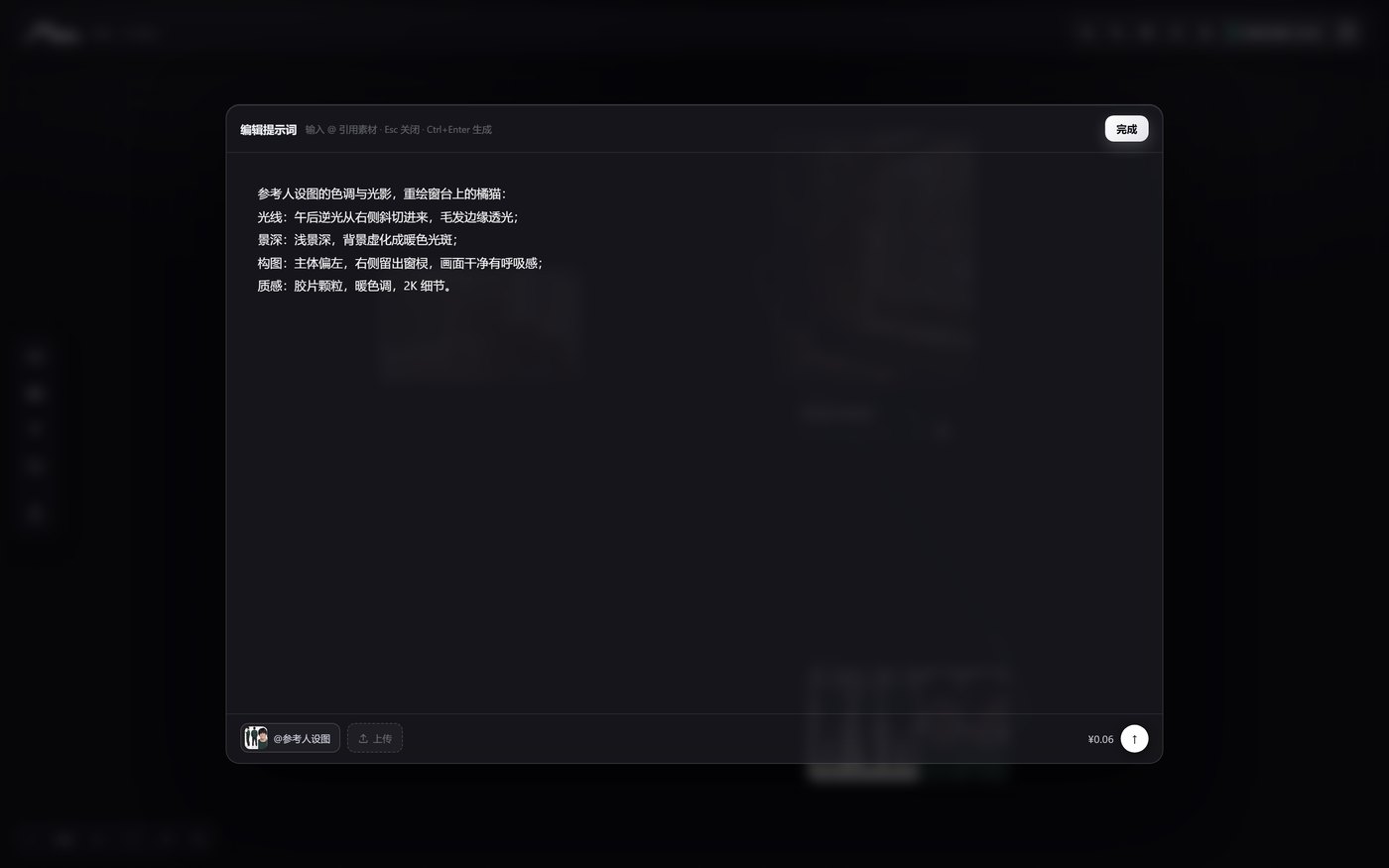
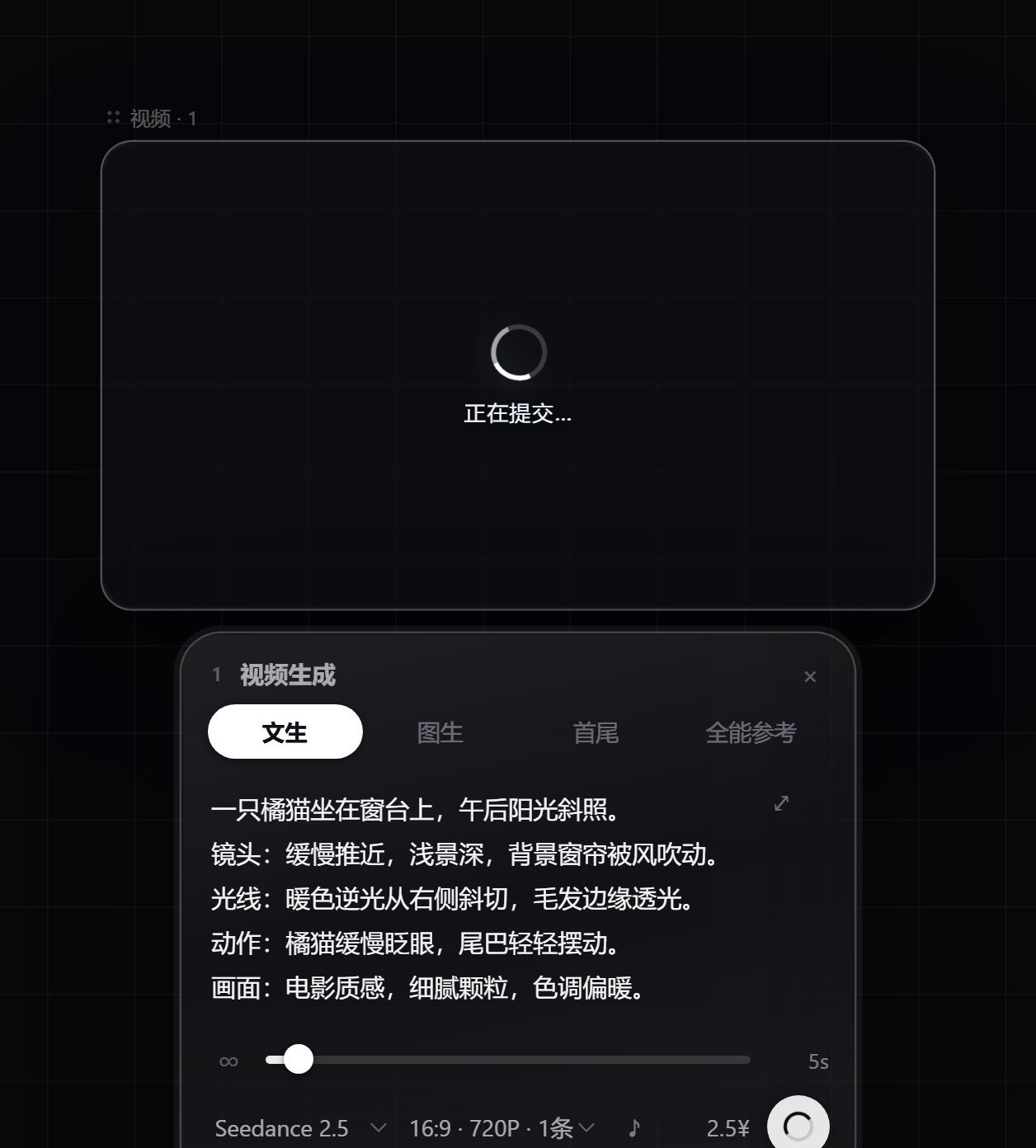
提示词较长时,点输入框右上角 ⤢ 可打开放大编辑窗;点击 ↑ 或按 Ctrl + Enter 提交生成。
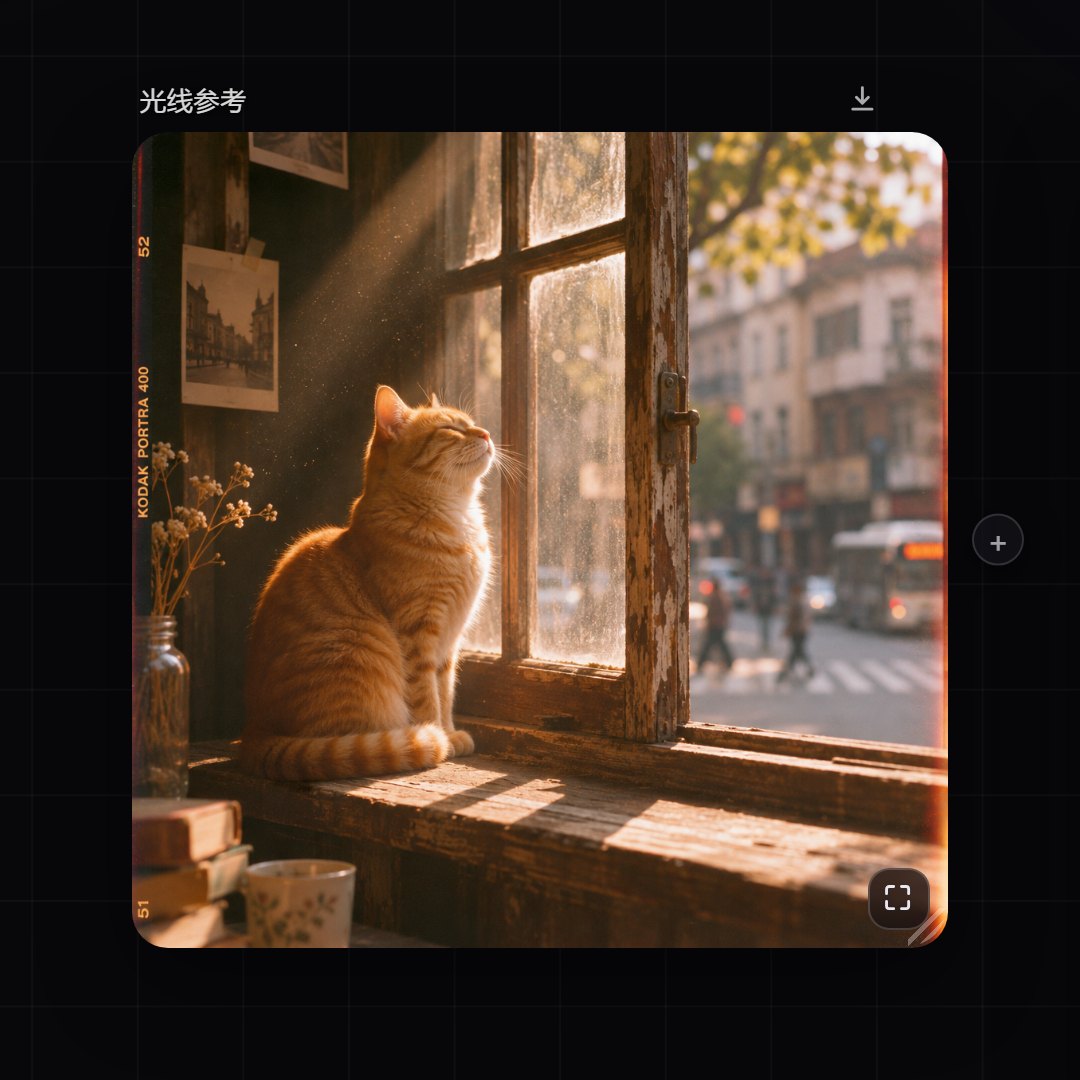
拖拽本地图片(≤ 20MB)、音频(≤ 25MB)或视频(≤ 100MB)到画布或上传栏,系统会自动安全上传至平台云存储并生成公网链接(支持真人参考图的模型会自动入库)。
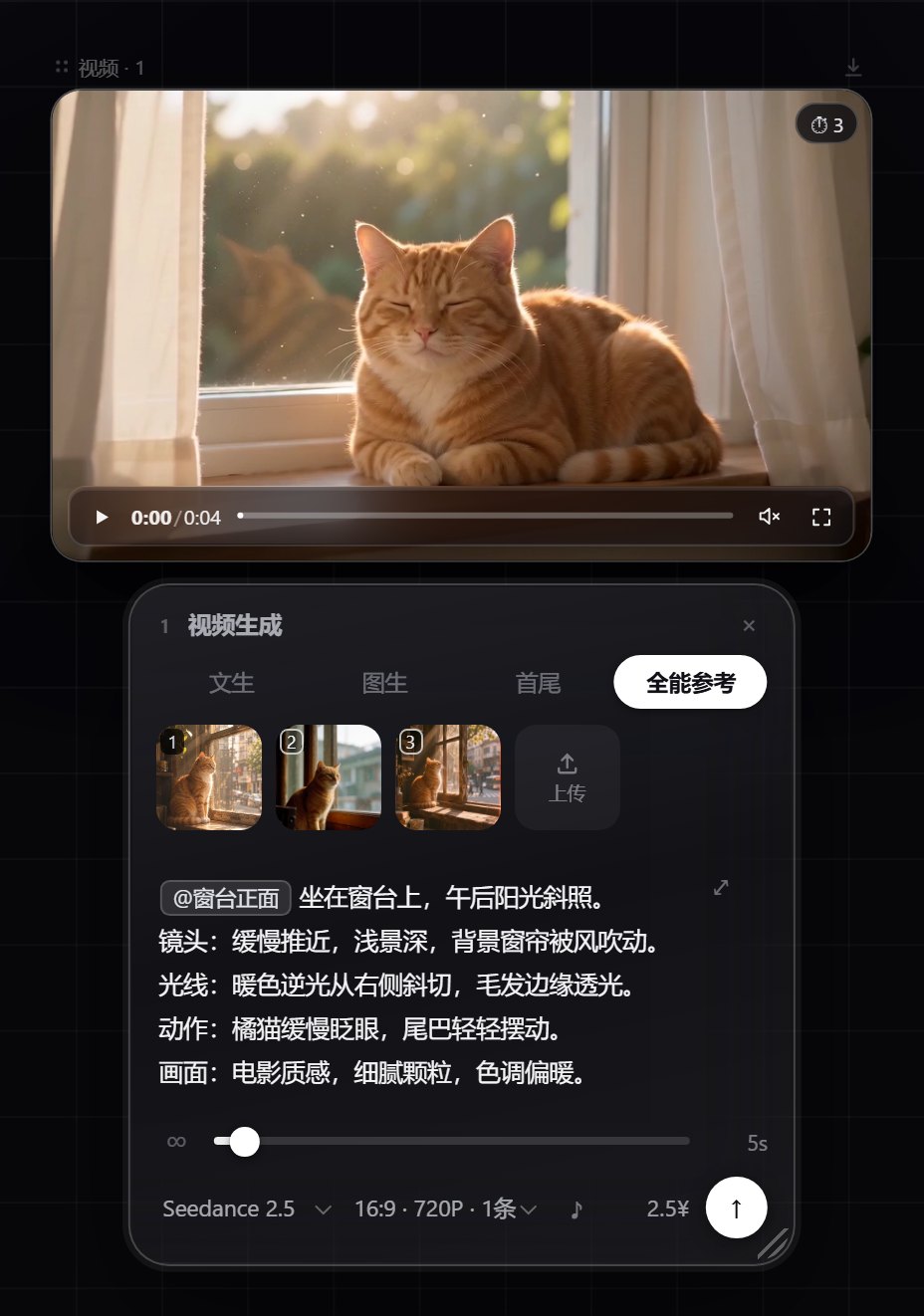
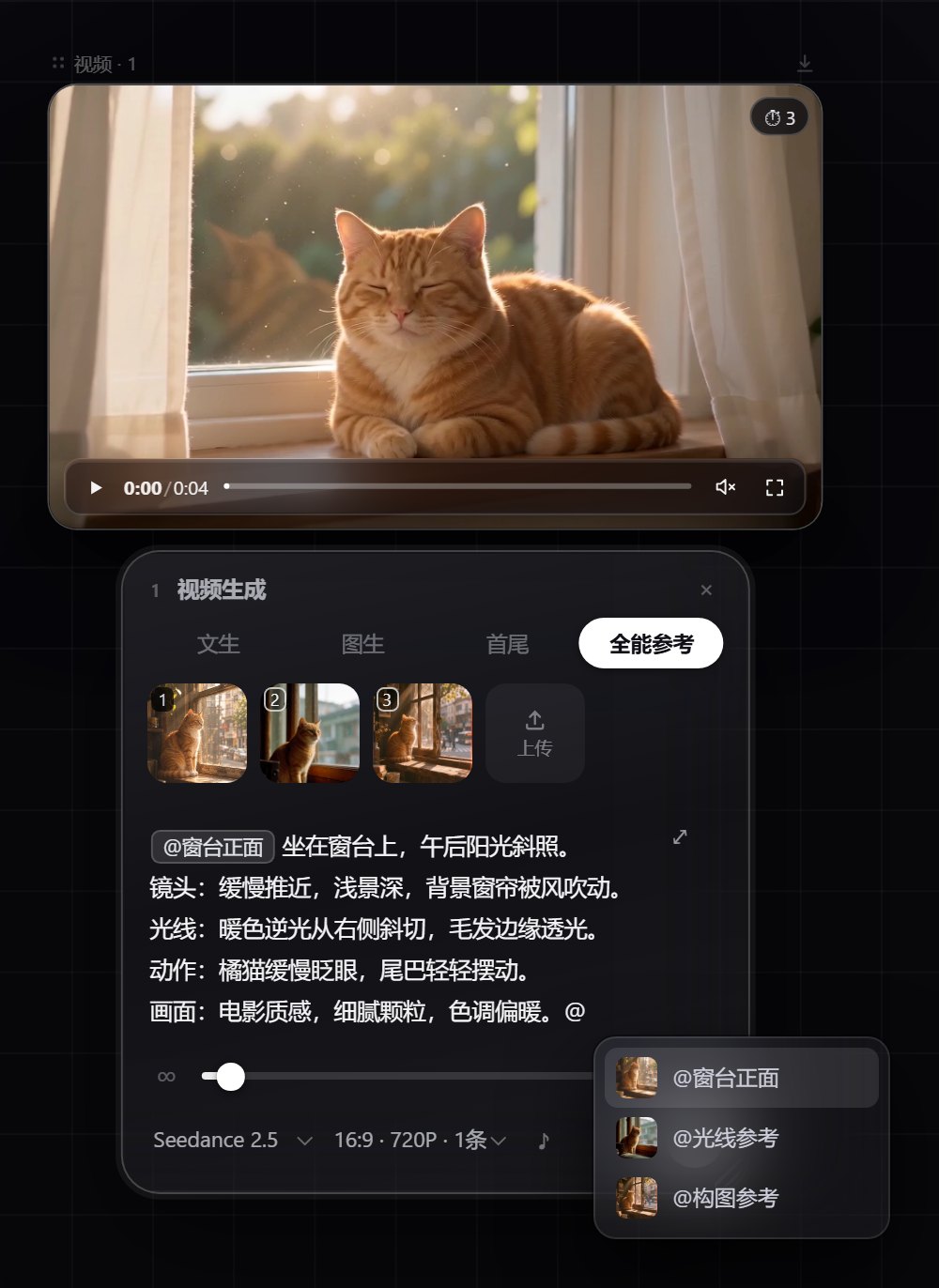
在提示词中输入 @ 可快速引用已接入的参考图、音频或视频素材。
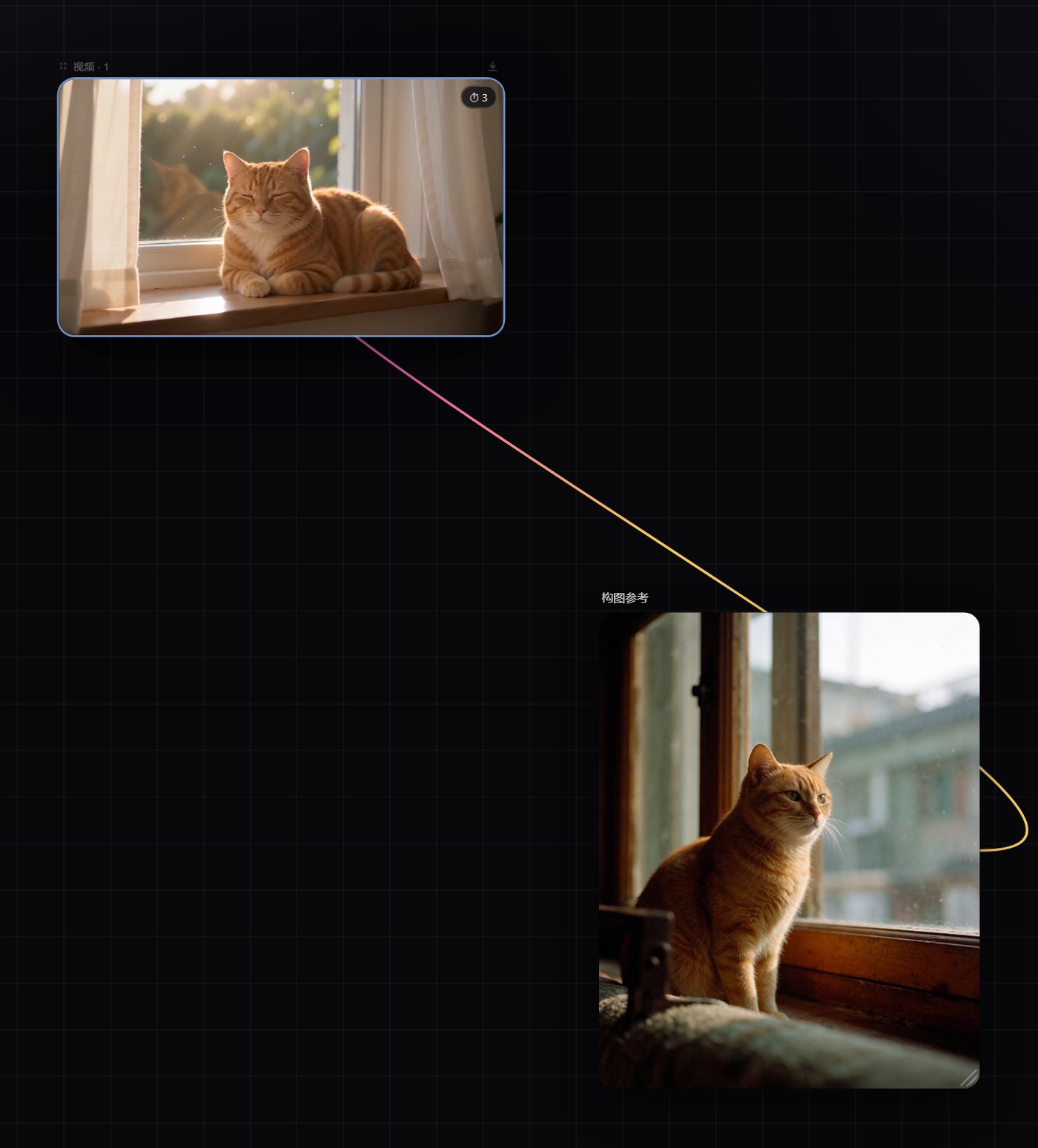
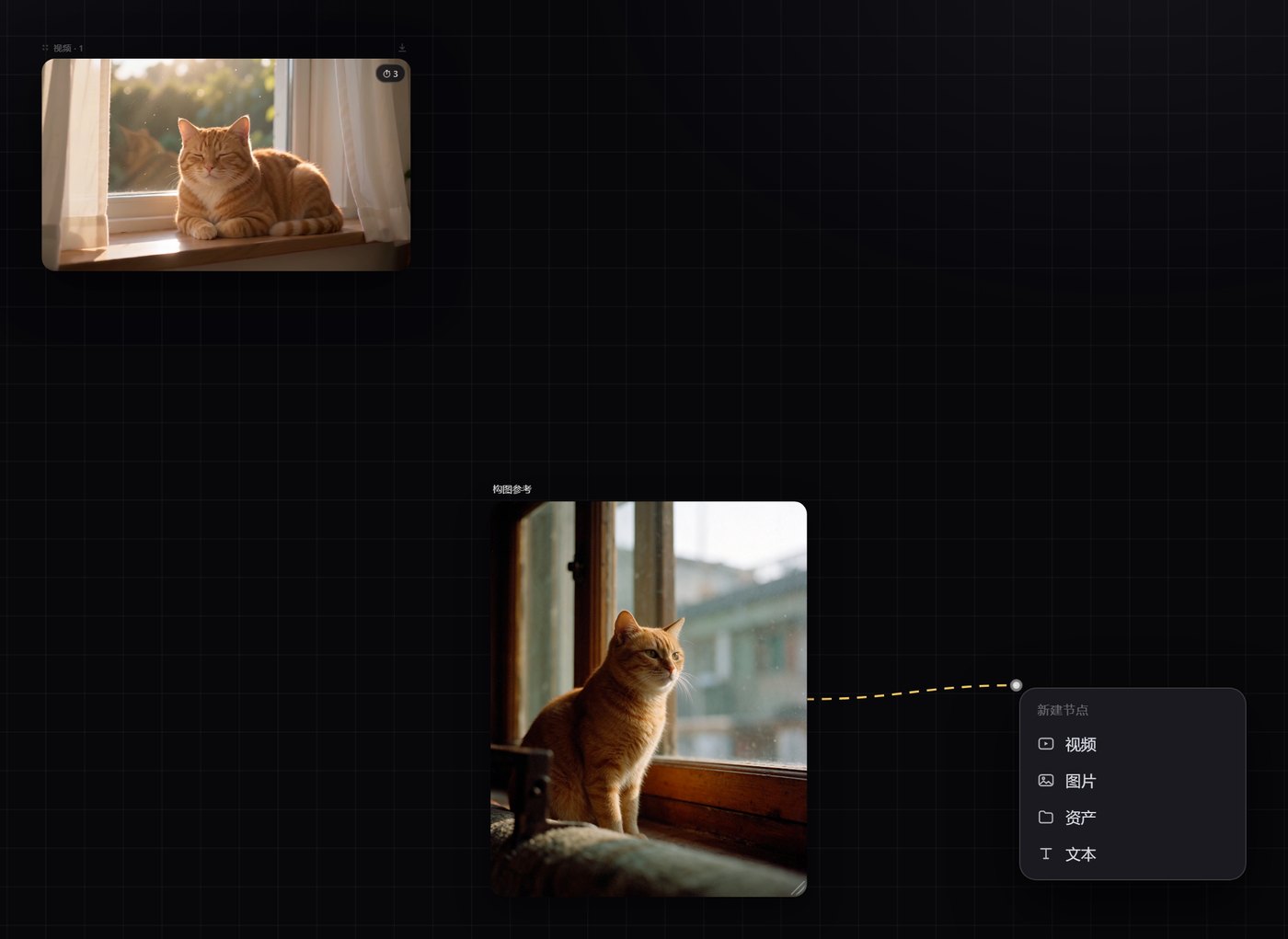
从素材节点右侧圆点拖出连线接到生成节点,或直接拖到空白处快速创建关联的生成节点。
Q1:为什么看不到图片生成选项? 当平台当前未上架图片模型时,界面会自动隐藏生图入口;后台上架图片模型后会自动显示。
Q2:为什么有些模型没有「自动时长(∞)」? 各上游协议能力不同(例如特惠按秒渠道要求固定整数秒),界面会自动按模型能力隐藏不支持的选项。
Q3:预估费用和最终扣费有轻微差异? 按 token 计费的模型(如 Seedance 官方分组)在提交前按分辨率和秒数估算,生成完成后按上游实际输出 token 精确多退少补。
| 快捷键 | 作用 |
|---|---|
F | 适应画布视图 |
空格 + 拖动 | 平移画布 |
Ctrl / Cmd + Z | 撤销(加 Shift 重做) |
Ctrl / Cmd + Enter | 提交生成 |
Alt + 拖动节点 | 快速复制节点 |
@ | 提示词内引用参考素材 |
Del / Backspace | 删除选中节点 |
Natively integrated with VideoToken: no manual API keys required. Your VideoToken account, wallet balance, model groups, and cloud storage work out of the box.
MaiMai Studio is a node-based infinite canvas workspace for AI video & image generation built directly into VideoToken. Lay out multiple shots side by side, wire reusable reference assets into prompt nodes, and compare versions effortlessly—ideal for storyboards, multi-shot shorts, and iterative creative direction.
| Capability | Description |
|---|---|
| Text to Video | Generate videos directly from prompts across all supported resolutions & durations |
| Image / Start-End Frame | Lock the opening frame or both start and end frames for precise motion control |
| Omni Reference | Combine reference images, audio, and video clips to keep characters and style consistent |
| Multi-Shot Canvas | Organize multiple scenes on one canvas, reuse connected assets, and group elements |
| Batch Generation | Submit 1–5 clips at once with live estimated cost before submitting |
EN / 中文 in the header. English displays balances and estimates in USD ($); Simplified Chinese converts automatically to CNY (¥) using the platform rate.Generate Mode is built for quick single prompts: type your prompt, attach optional references, choose a model, and track results in Generation History below.
Canvas Mode is built for structured multi-shot projects: click New Canvas or a starter template to open an infinite canvas synced to your VideoToken account.
Space and drag to pan, scroll/pinch to zoom, and press F to fit all nodes into view.Ctrl / Cmd to toggle individual items.Alt while dragging any node to spawn a duplicate for fast A/B testing.Use the left toolbar or right-click empty space to add Video Generation nodes, Image Generation nodes (shown automatically when image models are published), Asset nodes, and Text nodes.
Click the model selector to open the two-level menu: pick a Group first, then choose a Model inside that group. Only active, published models available to your VideoToken account are shown.
Resolutions, aspect ratios, duration ranges, and Auto Duration (∞) dynamically adapt to the selected model's actual capabilities.
Click ⤢ to open the expanded prompt editor for long scripts, and press ↑ or Ctrl + Enter to submit.
Drop local images (≤ 20MB), audio (≤ 25MB), or video (≤ 100MB) directly onto the canvas or composer. Files upload securely to cloud storage automatically (and portrait/media references are auto-ingested for models that require upstream asset libraries).
Type @ inside any prompt box to mention connected images, audio, or video clips directly.
Drag from an asset node's right handle into a generation node, or drop onto empty canvas space to create a linked generation node immediately.
Q1: Why is Image Generation hidden? Image options appear automatically whenever image models are published in your VideoToken catalog.
Q2: Why is Auto Duration (∞) unavailable on some models? Some upstream providers require an explicit integer duration in seconds; the UI automatically hides unsupported options.
Q3: Why might final billed cost differ slightly from the estimate? Token-billed models (such as official Seedance groups) estimate cost from resolution and duration beforehand, then settle against exact upstream output tokens upon completion.
| Shortcut | Action |
|---|---|
F | Fit canvas to view |
Space + Drag | Pan canvas |
Ctrl / Cmd + Z | Undo (add Shift to Redo) |
Ctrl / Cmd + Enter | Submit generation |
Alt + Drag Node | Duplicate node |
@ | Mention connected assets in prompt |
Del / Backspace | Delete selected nodes |